
Online Keyboard Shortcuts
OnlineShortcuts.com provides a comprehensive reference for essential keyboard shortcuts across Windows, MacOS, and Linux to boost productivity.
product Details
Explore More
Alternatives

About Online Keyboard Shortcuts
Online Keyboard Shortcuts, available at OnlineShortcuts.com, is a comprehensive, free reference resource designed to help users master keyboard shortcuts across the three major desktop operating systems: Windows, macOS, and Linux. The product serves as a centralized database of essential key combinations that allow users to perform tasks more quickly and efficiently without relying on a mouse or trackpad. By providing clear, organized lists of shortcuts for system-wide operations, application-specific commands, and common productivity tasks, this tool aims to reduce repetitive strain, increase workflow speed, and enhance overall computer proficiency. The target audience includes students, office workers, developers, designers, and anyone who spends significant time at a computer and wants to optimize their daily interactions. The main value proposition lies in its simplicity and accessibility: users can quickly find the exact shortcut they need, whether they are switching between virtual desktops in Windows, managing tabs in a web browser, or editing text documents. Additionally, the website offers downloadable cheat sheets in PDF and PNG formats, making it easy to keep shortcuts handy offline. The content is curated for accuracy and covers the most frequently used shortcuts, ensuring that both beginners and advanced users can benefit from reduced mouse dependency and faster task execution. The website is designed to be responsive and works on mobile devices, tablets, and desktops, making it a versatile tool for learning and reference.
Features
Comprehensive Cross-Platform Coverage
Online Keyboard Shortcuts provides detailed shortcut lists for all three major operating systems: Windows, macOS, and Linux. This includes system-wide shortcuts like Alt+F4 for closing windows on Windows, Command+Q for quitting applications on macOS, and Ctrl+Alt+T for opening terminal on Linux. Users can switch between operating system tabs to find relevant commands, ensuring that no matter which platform they use, they have access to the most important key combinations for navigation, window management, and system controls. This feature eliminates the need to search multiple sources or remember different conventions across devices.
Organized Categorization by Context
The shortcuts are thoughtfully categorized into logical groups, making navigation intuitive and efficient. Categories include system-wide shortcuts, operating system key specific shortcuts (like Windows Key combinations), application-specific shortcuts for programs like Command Prompt and File Explorer, text editing commands, virtual desktop controls, and web browser shortcuts. Each category is clearly labeled, and shortcuts are displayed with visual representations of the key combinations, such as "Ctrl + Shift + Esc" for opening Task Manager. This structured approach helps users quickly locate the exact shortcut they need without scrolling through irrelevant information.
Downloadable Cheat Sheets
Users can download the entire collection of keyboard shortcuts as a handy PDF file or as PNG images in both dark and light themes. This feature is particularly valuable for users who prefer offline access or want to print a physical reference to keep at their desk. The downloadable formats are optimized for readability and include all the shortcuts organized by category. Whether a user needs a quick glance reference on their phone or a printed poster for their office wall, the download options provide flexibility and convenience, ensuring that productivity gains are never limited by internet connectivity.
Responsive and Accessible Design
The website is built to be fully responsive, meaning it works seamlessly across mobile devices, tablets, and desktop computers. This accessibility ensures that users can look up shortcuts on any device they have at hand, whether they are at their workstation, in a meeting, or working remotely. The layout adapts to different screen sizes without losing functionality or readability, and the interface is designed to be intuitive with clear navigation tabs for each operating system. This feature makes the tool practical for real-world scenarios where users might need quick reference on their phone or tablet while working on a different machine.
Use Cases
Accelerating Daily Office Workflows
Office workers who spend hours typing documents, managing spreadsheets, or sending emails can dramatically reduce their task completion time by learning and applying keyboard shortcuts. For example, using Ctrl+B, Ctrl+I, and Ctrl+U for text formatting, Ctrl+F for finding specific words, and Ctrl+H for find and replace operations eliminates the need to navigate through menus with a mouse. Similarly, mastering window management shortcuts like Win+Left/Right arrow to snap windows or Alt+Tab to switch between applications allows for seamless multitasking. Over the course of a workday, these small time savings add up to significant productivity gains, reducing fatigue and improving focus.
Enhancing Developer and IT Professional Efficiency
Developers, system administrators, and IT professionals frequently work with command-line interfaces, file explorers, and multiple applications simultaneously. Shortcuts like Ctrl+C and Ctrl+V in Command Prompt, F7 to view command history, and Win+X to access the Power User menu are essential for efficient workflow. Virtual desktop shortcuts such as Win+Ctrl+D to create new desktops and Win+Ctrl+Left/Right to switch between them help developers organize their work environments by project or task. These shortcuts minimize context switching and allow professionals to execute complex sequences of commands without lifting their hands from the keyboard, leading to faster development cycles and improved system management.
Improving Accessibility and Reducing Physical Strain
For users with repetitive strain injuries, arthritis, or other conditions that make mouse usage painful, keyboard shortcuts provide a critical alternative for computer interaction. By reducing dependency on the mouse, users can perform all common tasks using only key combinations, which can be less taxing on wrists and hands. Shortcuts like Win+L to lock the screen, Win+D to show the desktop, and Ctrl+Shift+Esc to open Task Manager allow users to navigate their entire operating system without reaching for the mouse. This use case is particularly important for long-term computer users who want to maintain productivity while protecting their physical health.
Learning and Teaching Computer Fundamentals
Educators, trainers, and self-taught learners can use Online Keyboard Shortcuts as a structured curriculum for teaching computer literacy and productivity skills. The organized categories make it easy to introduce shortcuts progressively, starting with basic system-wide commands and moving to application-specific ones. Students can practice shortcuts in real-time while following along with the website, and the downloadable cheat sheets serve as excellent study aids. This use case extends to corporate training programs where new employees need to quickly become proficient with standard operating procedures and software tools, helping them integrate faster into their roles.
Pricing
Online Keyboard Shortcuts is completely free to use. There are no subscription plans, premium tiers, or hidden fees. The website is 100% free software without any ads, upsells, or adtech spyware. All features, including browsing all shortcuts, downloading cheat sheets in PDF and PNG formats, and accessing the site on any device, are available at no cost to the user.
Frequently Asked Questions
What is Online Keyboard Shortcuts?
Online Keyboard Shortcuts is a comprehensive, free reference guide that lists the most important keyboard shortcuts for Windows, macOS, and Linux operating systems. It is designed to help users improve their productivity by providing quick and easy access to commonly used commands and hotkeys, reducing reliance on mouse navigation and speeding up daily computer tasks.
How do I use Online Keyboard Shortcuts?
Simply browse the website and select your operating system from the tabs labeled Windows, macOS, or Linux. You will find shortcuts organized by category such as system-wide, application-specific, text editing, and web browsers. To use a shortcut, press the key combination shown on the screen simultaneously. You can also download the entire collection as a PDF or PNG image for offline reference.
Are the keyboard shortcuts updated regularly?
The shortcuts are curated to be as accurate as possible for the specified software versions. However, software updates can sometimes change hotkeys, so it is always good practice to verify with the specific version you are running. The website aims to keep its content current, but users are encouraged to report any discrepancies they find.
Can I request new shortcuts or software to be added?
Yes, users are encouraged to request new software or additional shortcuts. The website welcomes feedback and suggestions to expand its coverage. While there is no formal submission form, users can think of the shortcut they need and the team aims to mentally receive your message. For serious requests, contacting the site administrators is recommended.
Similar to Online Keyboard Shortcuts

iHatePosting
Create once, tailor for each platform, and schedule posts across 14 social networks from one simple dashboard.
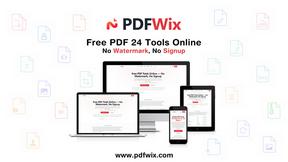
PDFWix
PDFWix is a free online PDF toolkit designed to make everyday PDF tasks simple, fast, and private.
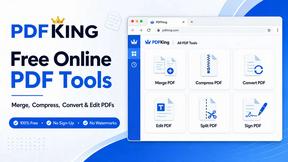
PDFKing
Free online PDF tools to merge, compress, convert, edit, sign, and manage documents—no signup, watermarks, or daily limits.



VideoToScript
Turn TikTok, Reels, Shorts, Facebook videos, audio, and video into accurate timestamped transcripts with TXT, SRT, and VTT exports.